With electronics hardware costs at an all-time high, I, like so many others, am trying to get more life out of my existing devices than ever before. As of this writing in September 2026, I've been looking at available options for my home's wireless router — a now several-year-old NETGEAR AC1750 Smart Wi-Fi Router (Model R6350) that I purchased in 2018. Sadly, NETGEAR's final firmware update for this router model (V1.1.1.88_1.0.1) was released quite some time ago, and the R6350 has since been designated as "End of Service," with no further firmware updates planned.
When a product reaches end of service (end of support) with no further updates planned, security issues and non-security-related (i.e., functional and performance) bugs will not be remediated. For a device that sits at the edge of my home network, having a router that cannot be updated regularly is a significant concern. Just like a PC or a smartphone, routers — which are themselves simple, purpose-built computers — require regular software maintenance to ensure a reasonable degree of security for the network they operate on.
Although my router works perfectly fine, given its age and NETGEAR's product policies it is no longer supported, much like how Microsoft has ended support for past versions of Windows (95, 98, NT, 2000, XP, Vista, 7, 8, etc.). Instead of shelling out the cash to purchase a new router in today's market, I decided to find an alternative operating system (OS) for my router. To that end, I chose to implement OpenWrt, an open-source, Linux-based operating system specifically compiled, packaged, and maintained for use on routers, switches, and other embedded computing devices.
In this blog post, I will provide a brief overview of what an OS is, what Linux is, and what OpenWrt is. I will also walk through the procedure I used to prepare for and perform the migration from NETGEAR's firmware to OpenWrt 25.12.2, the latest release as of this writing. Please note that while you are welcome to use this post as a reference if you are considering switching any of your devices to OpenWrt, any actions you take based on this content are entirely at your own risk — up to and including voiding existing warranties or support agreements, or rendering your devices or network unusable. This post documents my own personal experience and is not intended as an authoritative guide to installing OpenWrt. As always, refer to your device's vendor documentation, OpenWrt's official documentation, and your own common sense.
What is an Operating System?
To put it simply, an operating system, or OS, is a complex set of software that manages access to hardware resources. The U.S. National Institute of Standards and Technology (NIST) defines "operating system" in several of its Special Publications (SP). A few notable definitions:
NIST SP 800-44 version 2, "Guidelines on Securing Public Web Servers":
"The software 'master control application' that runs the computer. It is the first program loaded when the computer is turned on, and its main component, the kernel, resides in memory at all times. The operating system sets the standards for all application programs (such as the Web server) that run in the computer. The applications communicate with the operating system for most user interface and file management operations."
NIST SP 800-82 revision 3, "Guide to Operational Technology (OT) Security":
"An integrated collection of service routines for supervising the sequencing of programs by a computer. An operating system may perform the functions of input/output control, resource scheduling, and data management. It provides application programs with the fundamental commands for controlling the computer."
NIST SP 800-152, "A Profile for U.S. Federal Cryptographic Key Management Systems":
"A collection of software that manages computer hardware resources and provides common services for computer programs."
NIST SP 800-86, "Guide to Integrating Forensic Techniques into Incident Response":
"A program that runs on a computer and provides a software platform on which other programs can run."
Also from NIST, Interagency Report (NISTIR) 7695, "Common Platform Enumeration: Naming Specification Version 2.3," defines an operating system as:
"A computer program, implemented in either software or firmware, which acts as an intermediary between users of a computer and the computer hardware. The purpose of an operating system is to provide an environment in which a user can execute applications."
In summary, an OS is the software sitting between your device's hardware, your apps, and the behind-the-scenes services that let you use your device. An OS is tasked with numerous responsibilities, including but not limited to:
- Managing hardware resources
- Central Processing Units (CPUs)
- Random Access Memory (RAM)
- Auxiliary (secondary) storage (hard disk drives, solid-state drives, USB mass storage devices, etc.)
- Managing system software such as device drivers
- Managing peripheral devices
- Mice/trackpads
- Keyboards
- Monitors
- Printers and print queues
- Handling hardware and software interrupts
- Handling process conflicts
As you probably already know, there are many examples of OSes on the market. Some are general-purpose, such as Microsoft Windows, while others are more niche — such as IBM's z/OS for their mainframe computers, or Zephyr RTOS, a real-time operating system (RTOS) for microcontroller boards.
Depending on the OS, this software can be highly complex and very large. Different components of an OS can also be written in different programming languages — including C, C++, Assembly, Rust, and many others — each with their own tooling, coding paradigms, and potential for introducing bugs. Developers try their best to ensure efficient, bug-free code through well-thought-out software design, rigorous code review and testing, and AI-assisted development, but the probability of completely bug-free code remains effectively zero. Therefore, regular security updates are still required.
What is Linux?
Linux itself is an operating system kernel, or "core." The Microsoft Windows equivalent, used in all modern versions of Windows since Windows NT 3.1, is called the "NT kernel." The kernel powering Apple's operating systems, including macOS (formerly Mac OS X), is called "XNU." It is sometimes confused with "Darwin," which is actually the broader open-source OS layer underlying macOS and its derivatives such as iOS and watchOS. Darwin includes XNU as its kernel but also encompasses Berkeley Software Distribution (BSD)-derived system utilities and other components; Darwin and XNU are related but not the same thing.
Linux began as a personal project by Linus Torvalds in the spring of 1991, during his time as a computer science student at the University of Helsinki in Finland. Inspired by MINIX — a minimal, education-focused Unix-like OS developed by Andrew Tanenbaum, a computer science professor at the Vrije Universiteit in Amsterdam — Torvalds announced his new kernel project publicly in August 1991, with the first release (Linux 0.01) following in September of that year. Rather than pursuing commercial success, Torvalds contributed significantly to the open-source software movement by licensing his kernel under the Free Software Foundation's (FSF) GNU General Public License (GPL). This license allows anyone to copy and modify Linux's source code, as long as any distributed modifications are also made available to others under the same terms — a principle commonly known as "copyleft." When the Linux kernel is combined with FSF's GNU Core Utilities, a complete and freely available OS is formed, frequently referred to as "GNU/Linux." For the curious, GNU is a recursive acronym standing for "GNU's Not Unix," reflecting that GNU software is not derived from proprietary Unix operating systems, such as AT&T's Unix System V.
Because of this decentralized and freely licensed model, Linux-based OSes have been developed and adapted for a wide variety of purposes, powering PCs, servers, networking equipment, smartphones, embedded devices, mainframes, distributed computing clusters, space satellites, and effectively all of the world's top supercomputers. Thanks to Google's Android, Linux-based OSes are collectively the most widely deployed operating system family in the world by number of active devices.
What is OpenWrt?
OpenWrt is a GNU/Linux-based OS focused on providing an efficient, feature-rich, and widely supported open-source firmware alternative for embedded devices — particularly networking equipment such as routers, switches, wireless access points (WAPs), load balancers, and firewalls. The name originates from the Linksys WRT54G wireless router, a landmark consumer networking device released in 2002 and the first platform targeted by OpenWrt. The "WRT" in the router's model designation stands for "Wireless RouTer," which was incorporated directly into the original project's name. OpenWrt's initial release (codename "White Russian") specifically targeted the WRT54G after Linksys published the router's source code under the GNU GPL.
The project aims to be highly configurable and modifiable, allowing users to install additional software packages on their devices just like a desktop or server OS. For example, an OpenWrt user can install Squid — an open-source web proxy and caching server — to optimize and cache web traffic, reducing Internet bandwidth consumption. By comparison, my NETGEAR router's stock firmware doesn't allow me to install a proxy server of my choosing, but with OpenWrt, I have that option.
The NETGEAR AC1750 (R6350) Wi-Fi Router at a Glance
I purchased this router in 2018, and for many years it served my home network well, handling a mix of wired and wireless devices including Apple TVs, iPhones, laptops, smartwatches, Windows PCs, my NETGEAR GS108Ev3 managed desktop switch, and Linux virtual machines (VMs). Like most small office/home office (SOHO) networking devices, my router combines the functions of a router, a firewall, a network switch, and a wireless access point into a single unit. Its hardware specifications are as follows:
- CPU & Chipset: MediaTek MT7621AT — a dual-core Microprocessor without Interlocked Pipeline Stages (MIPS) System-on-Chip (SoC) operating at 880 MHz, marketed by Ralink/MediaTek as a "router-on-a-chip"
- RAM: 128 MB Double Data Rate 3 (DDR3) Synchronous Dynamic RAM (SDRAM)
- Storage: 128 MB NAND-based flash
- Ethernet Ports: 1 × Gigabit WAN port (Internet uplink); 4 × Gigabit LAN ports (built-in switch)
- Wi-Fi: Dual-band, supporting IEEE 802.11 a/b/g/n/ac (Wi-Fi 5) with Multi-User Multiple-Input, Multiple-Output (MU-MIMO)
- 2.4 GHz band: up to 300 Mbps
- 5 GHz band: up to 1,450 Mbps
- Combined marketing rating: AC1750 (1,750 Mbps)
- Guest Network: Separate guest Wi-Fi network with isolated access
- Wi-Fi Security: Wi-Fi Protected Access (WPA) and Wi-Fi Protected Access 2 (WPA2) with Pre-Shared Key (PSK)
- Wi-Fi Protected Setup (WPS): A well-meaning but vulnerable standard no longer recommended for use
- Digital Living Network Alliance (DLNA): A set of interoperability standards for media streaming and sharing among networked devices, originally established in 2003 by a founding consortium that began with Sony and Intel, later to be joined by Samsung, Matsushita Electric (now Panasonic), and Hewlett-Packard. (Note: the DLNA organization itself dissolved in 2017, though its standards remain widely implemented.)
- USB: One USB 2.0 port for connecting a USB storage device for shared network access
- DHCP Server: Automatically assigns IP addresses to devices on the network
- DNS Resolution: Translates human-readable domain names (such as www.google.com) into their corresponding IP addresses
- FTP Server: Hosts a File Transfer Protocol (FTP) server with a customizable URL provided by NETGEAR for remote file access
- Management: Can be managed using the web-based interface directly hosted on the router or through the NETGEAR Nighthawk mobile app available for Apple iOS (App Store) and Google Android (Google Play Store).
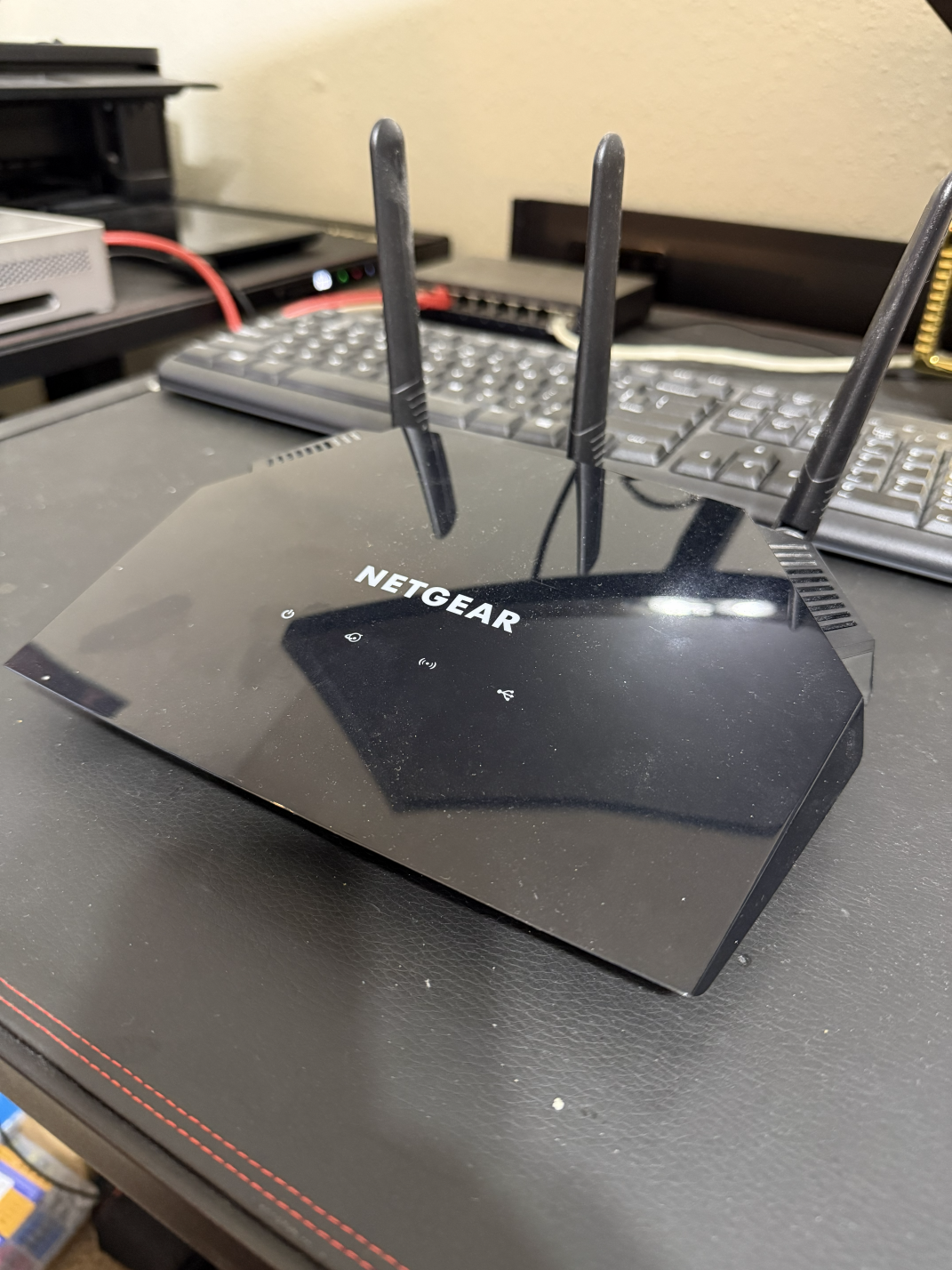
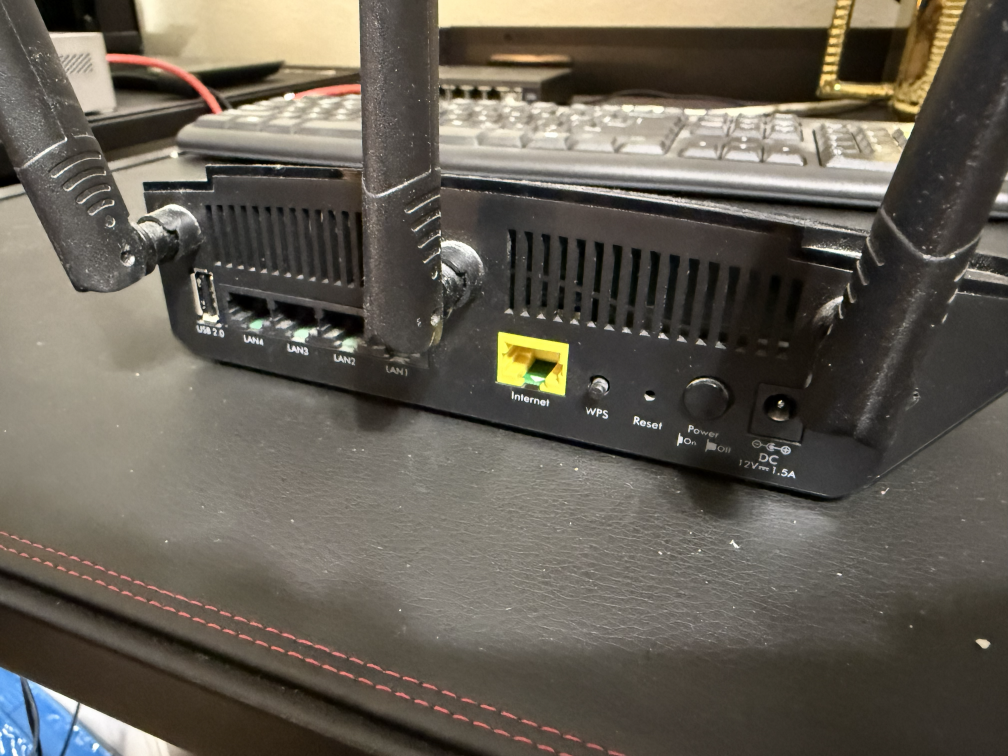
As you can see, while older now, this device still has sufficient capabilities for acting as the gateway to and from my home network — simultaneously supporting multiple devices, handling streaming services like Netflix, YouTube, and Crunchyroll, and protecting my network from unauthorized access. By leveraging OpenWrt, I can extend the usable life of my router, continue to receive security updates, and gain access to capabilities that the OEM firmware did not provide — such as port mirroring, which allows me to monitor and analyze my network traffic using tools like Suricata for intrusion detection and OpenSearch for log management and visualization.
According to OpenWrt's documentation, any device with less than 8 MB of flash storage or less than 64 MB of RAM is unsupported, as these fall below the bare minimum for stable operation. It is recommended to have at least 32 MB of flash storage and at least 128 MB of RAM to ensure stable operation and the capacity to run additional software, including the web-based graphical user interface (GUI) called LuCI. With 128 MB of both flash storage and RAM, my router meets the recommended hardware specifications to run OpenWrt.
Upgrading from NETGEAR OEM Firmware to OpenWrt
According to OpenWrt's documentation, my specific router model can be upgraded directly using NETGEAR's own firmware file upload functionality in their web-based interface. Other router models may not be so fortunate and will require more in-depth and technically challenging installation steps. Always consult the OpenWrt documentation for your particular device model and ensure you have a method for rolling back to your OEM firmware and a backup of your device's running configuration, if possible. As a reminder: if you use this blog post as full or partial guidance for upgrading your own devices, you agree that you are doing so at your own risk. With that said, some preliminary steps were necessary to ensure a smooth transition from NETGEAR's OEM firmware to OpenWrt.
Preliminary Checklist
- Verify my router's support in OpenWrt's Table of Hardware (ToH).
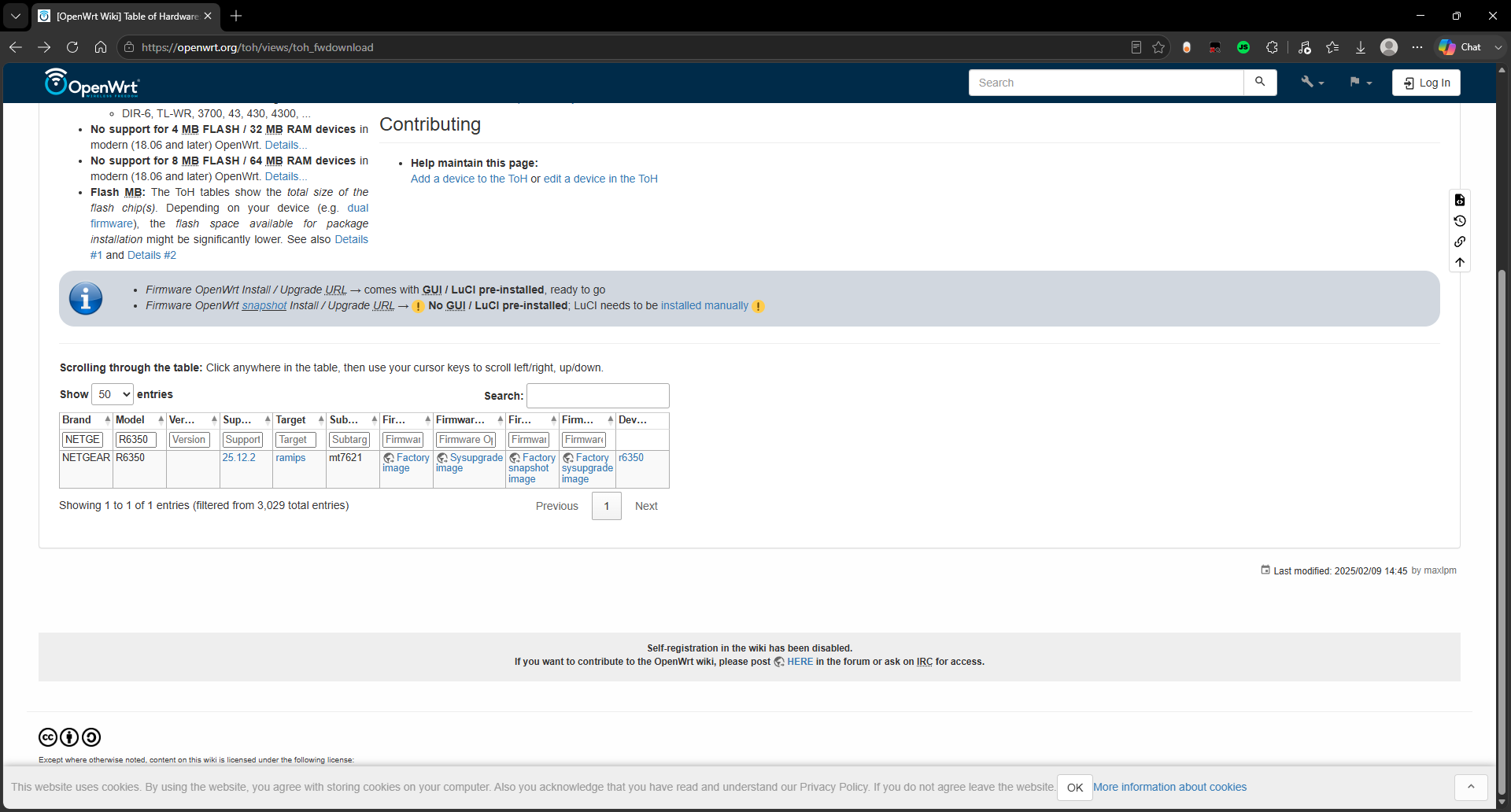
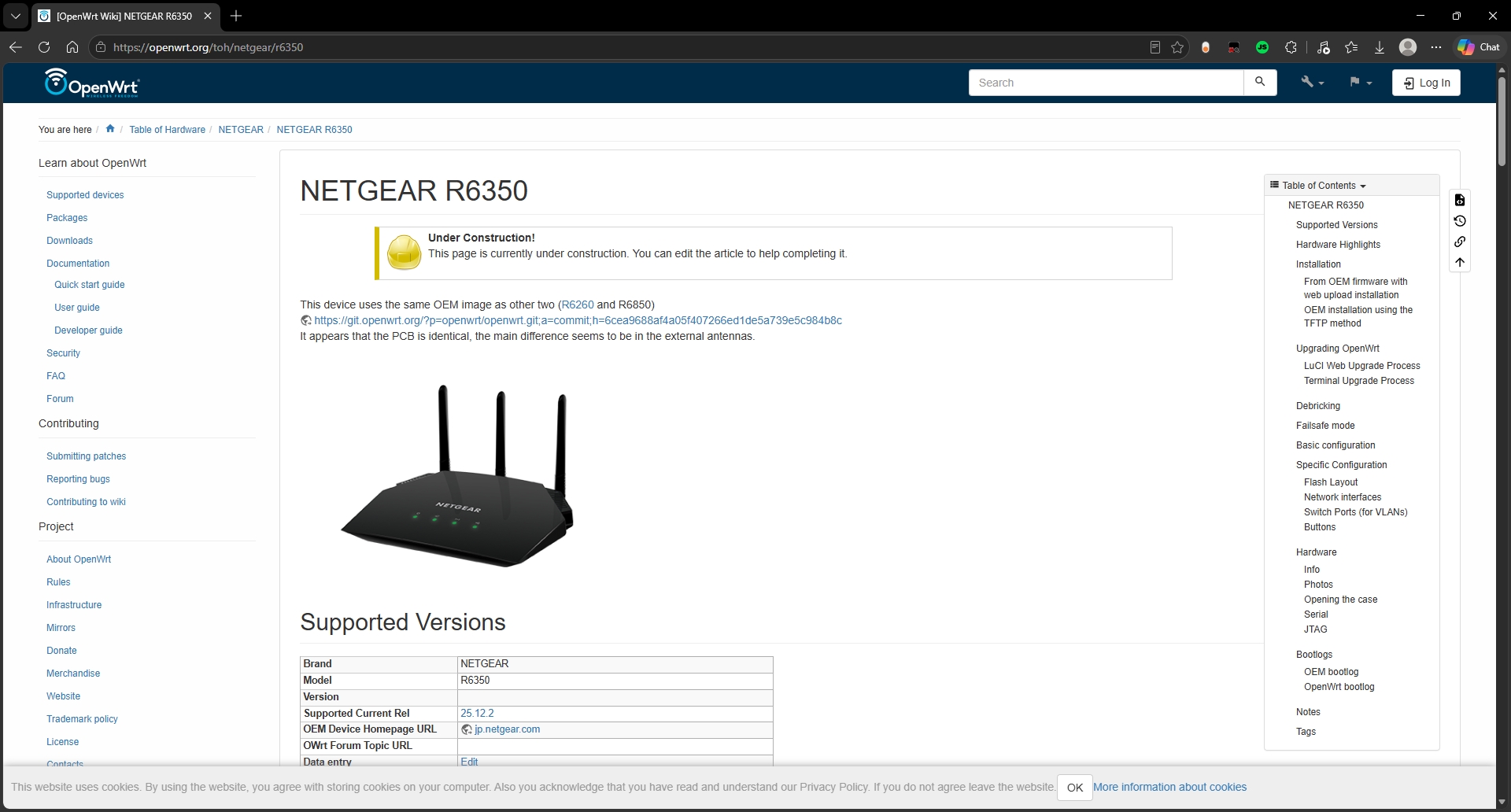
Download the correct firmware image for my router's specific hardware and CPU architecture.
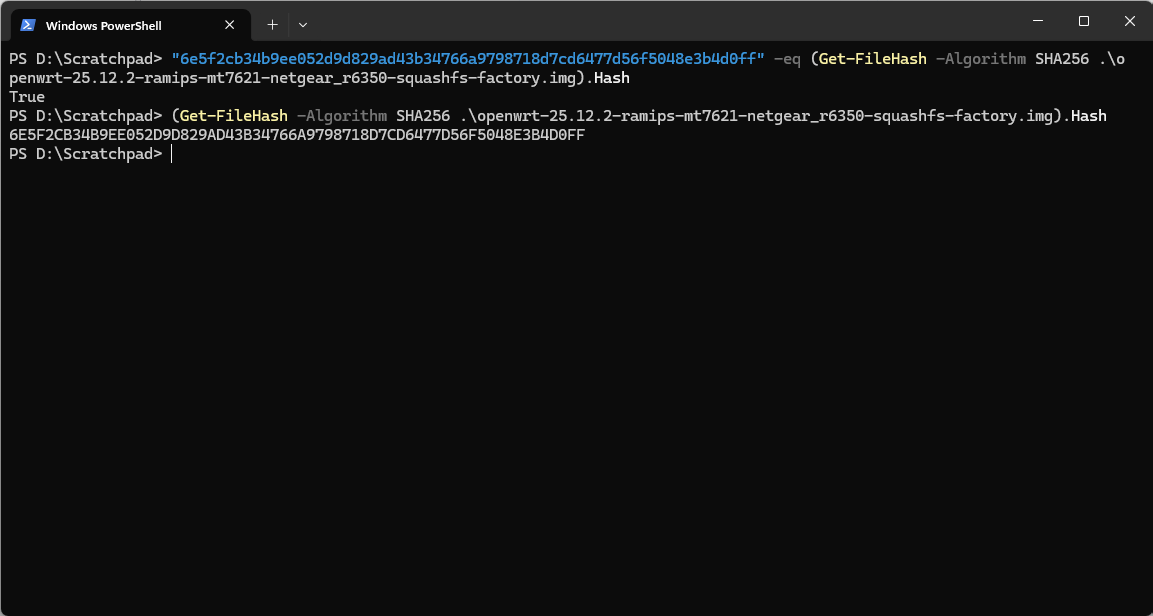
Verify the firmware file's SHA256 checksum to confirm the downloaded file was not corrupted or tampered with.
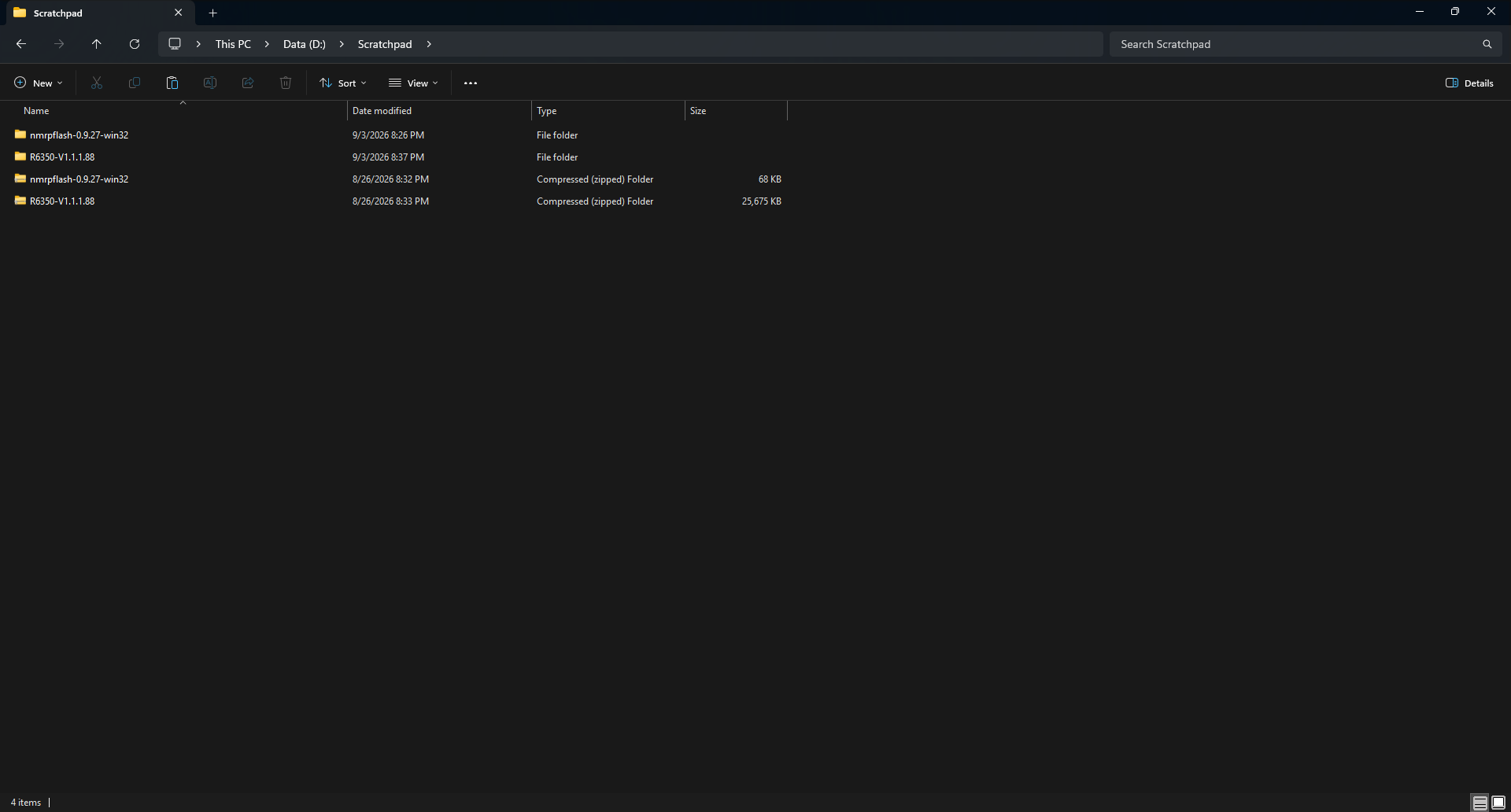
Download the final version of NETGEAR's OEM firmware for my router, in case a rollback is required.
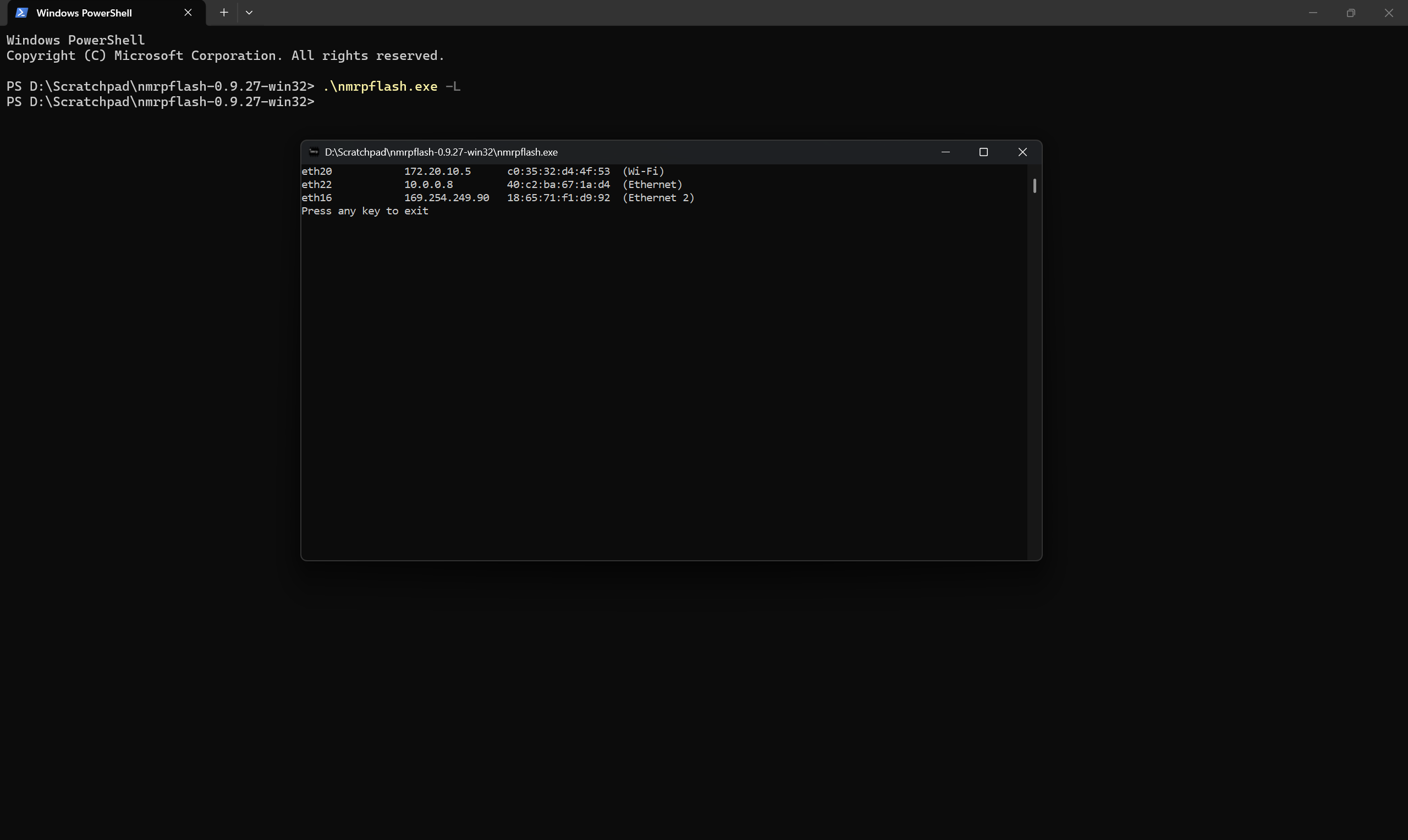
Download the nmrpflash utility, an open-source command-line (CLI) tool that uses NETGEAR's Management Recovery Protocol (NMRP) to reflash a NETGEAR device in the event of a catastrophic failure, such as a botched OpenWrt installation.
Download and install Npcap, a packet capture library developed by the Nmap project, which nmrpflash requires to function correctly on Windows. (Note: this step is not necessary on Linux or macOS.)
Upgrade Procedure
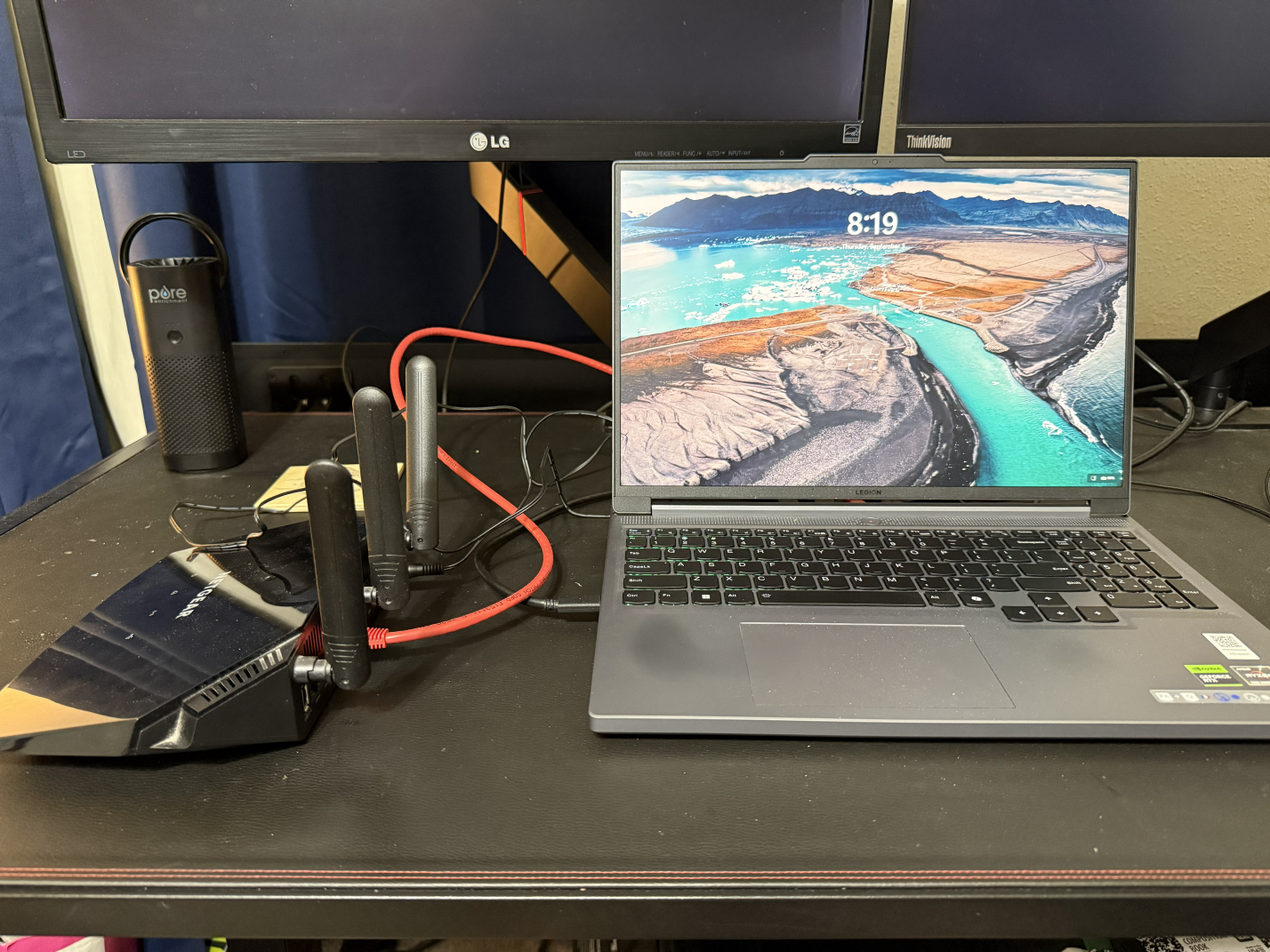
Disconnect the router from the ISP's modem, then connect the router to my laptop using an Ethernet cable plugged into any of the router's switch (LAN) ports (LAN1–LAN4). Keeping the router isolated from the internet during initial setup prevents exposing an unconfigured device to outside traffic.
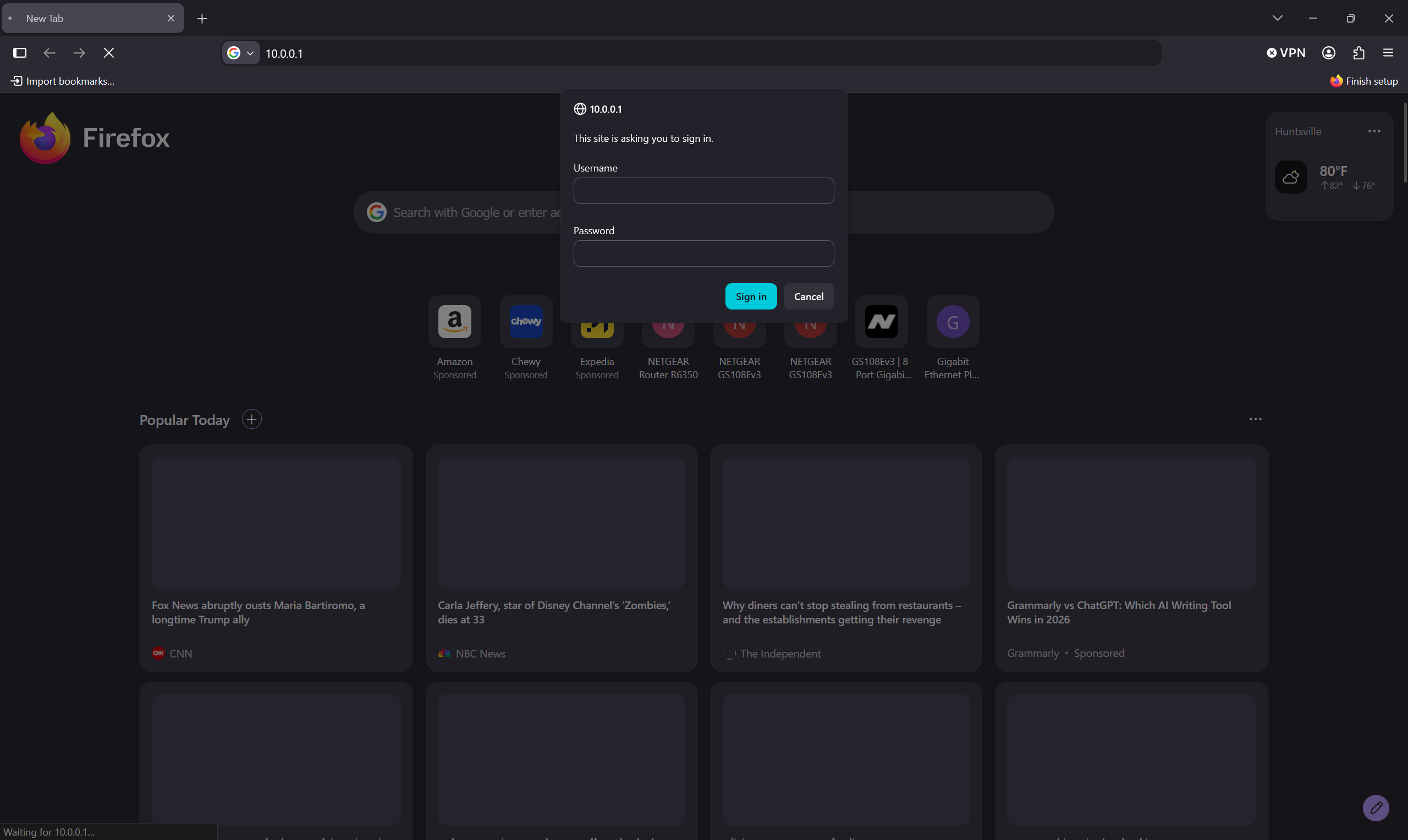
Power on the router and log into NETGEAR's web-based management interface.
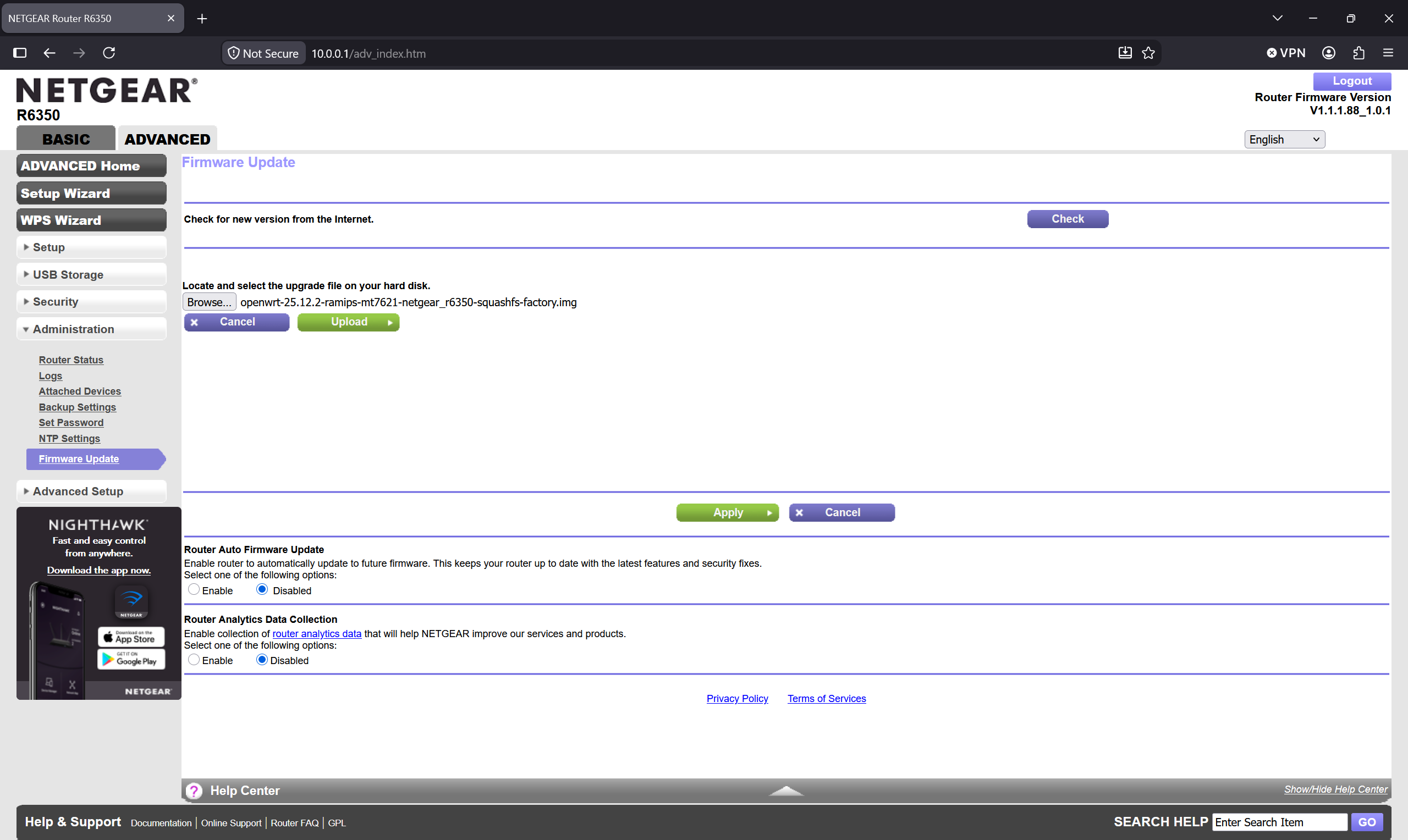
Navigate to the firmware update page and upload the OpenWrt firmware image. The process takes approximately 3 minutes. The page may warn the firmware file shows an older version from what is presently running. This is expected and can be ignored.
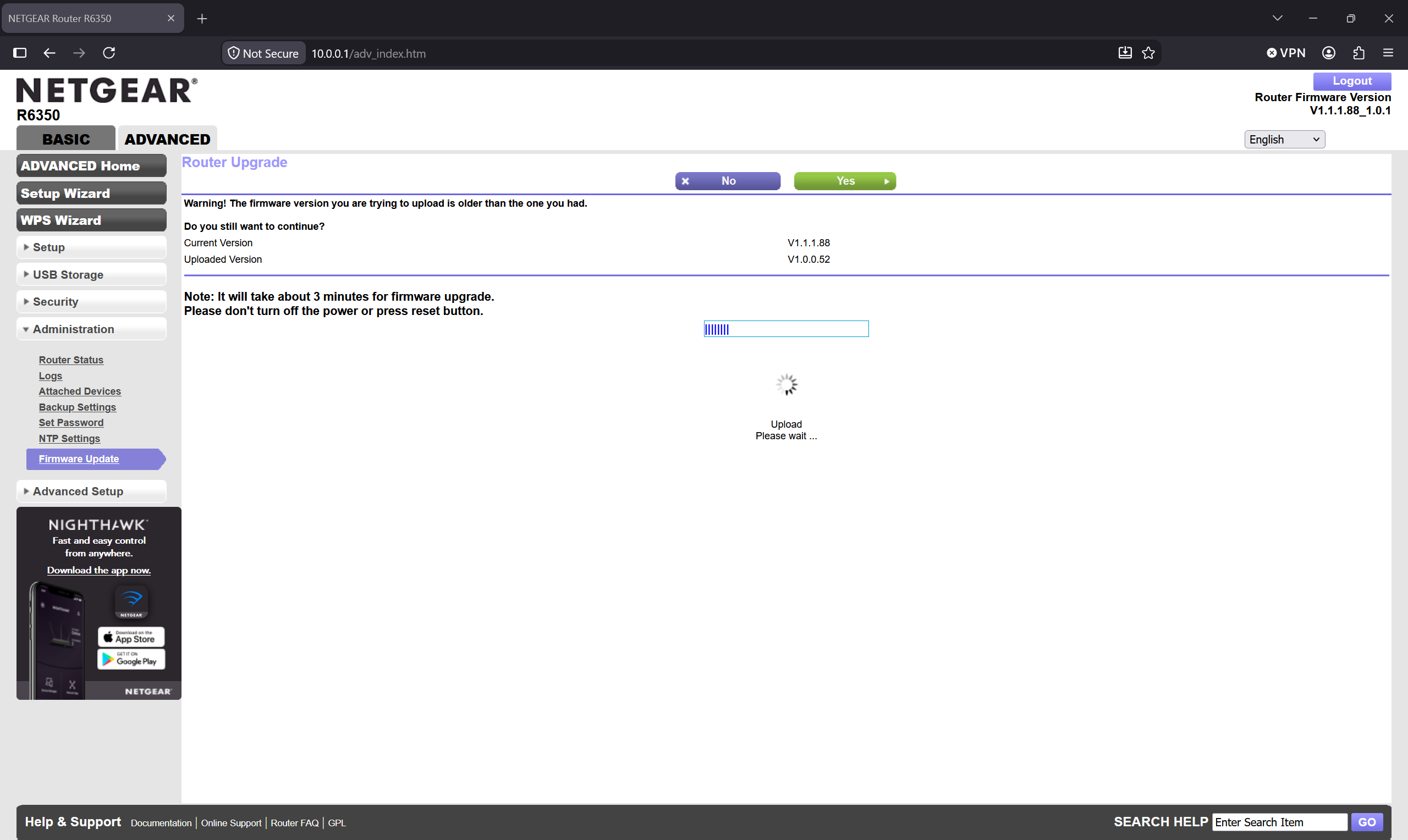
Allow the router to reboot fully. Do not interrupt power during this process, as doing so risks corrupting the firmware.
Once the router has rebooted, OpenWrt's DHCP server (enabled by default) should automatically assign your laptop an IP address. If your laptop does not receive one, manually configure its Ethernet adapter to use a static IP address in the 192.168.1.x range (for example, 192.168.1.10), with a /24 subnet mask (255.255.255.0).
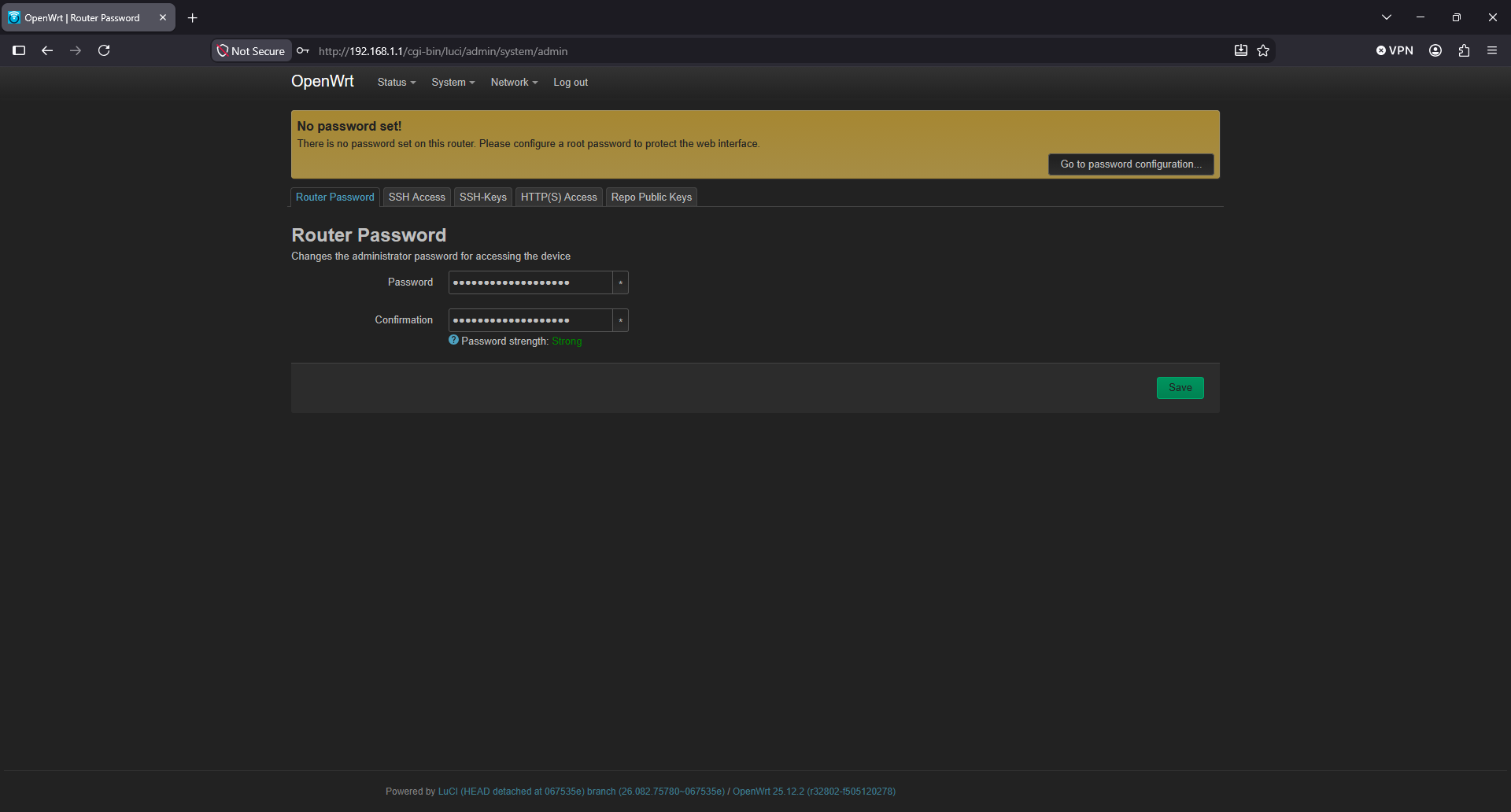
Open a web browser and navigate to OpenWrt's default management address, 192.168.1.1, to access the LuCI web interface. On a fresh installation, the root account has no password set.
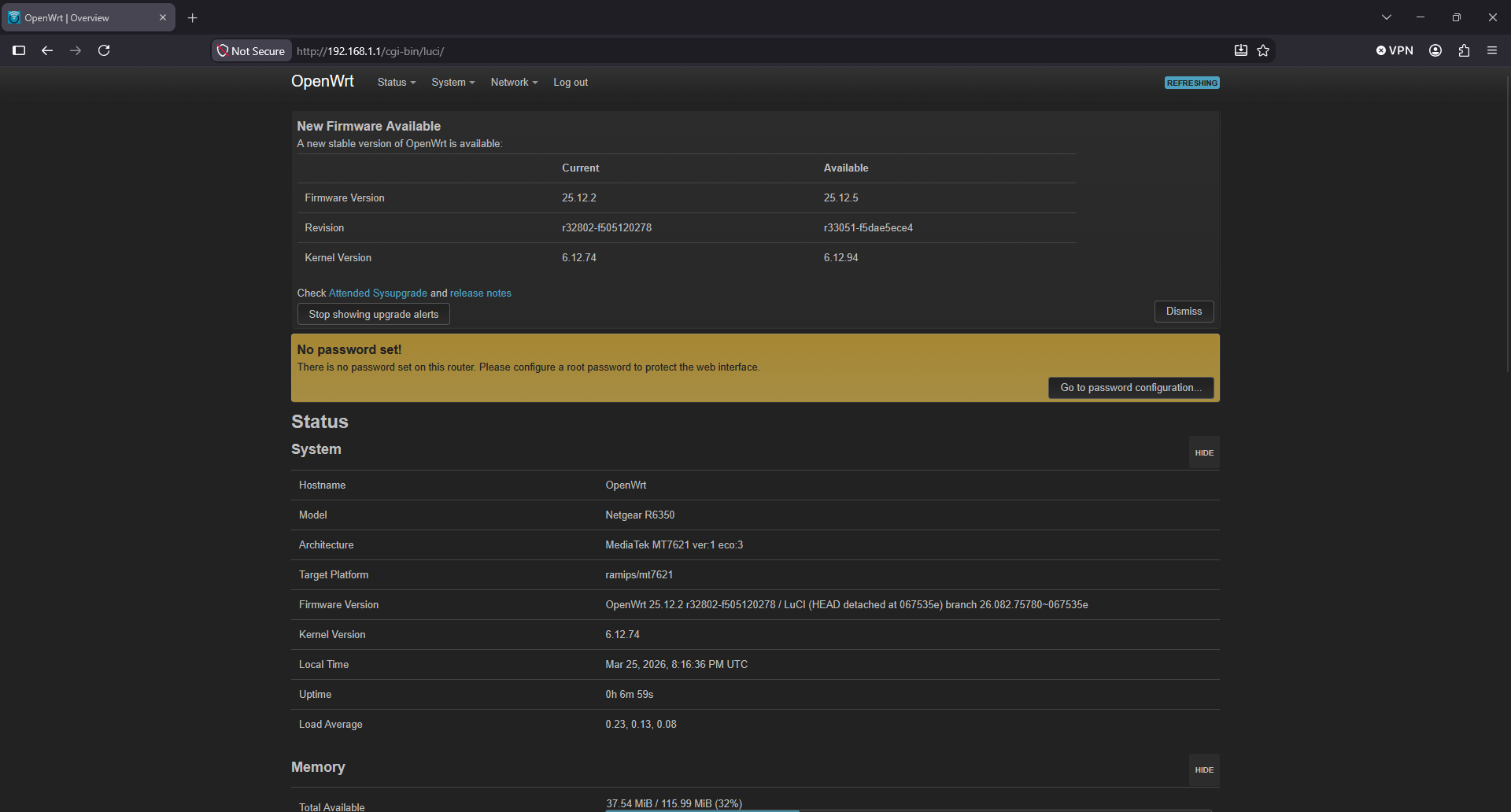
Immediately set a strong password for the root account before any further configuration — do not skip this step, especially if you plan to reconnect the router to the internet.
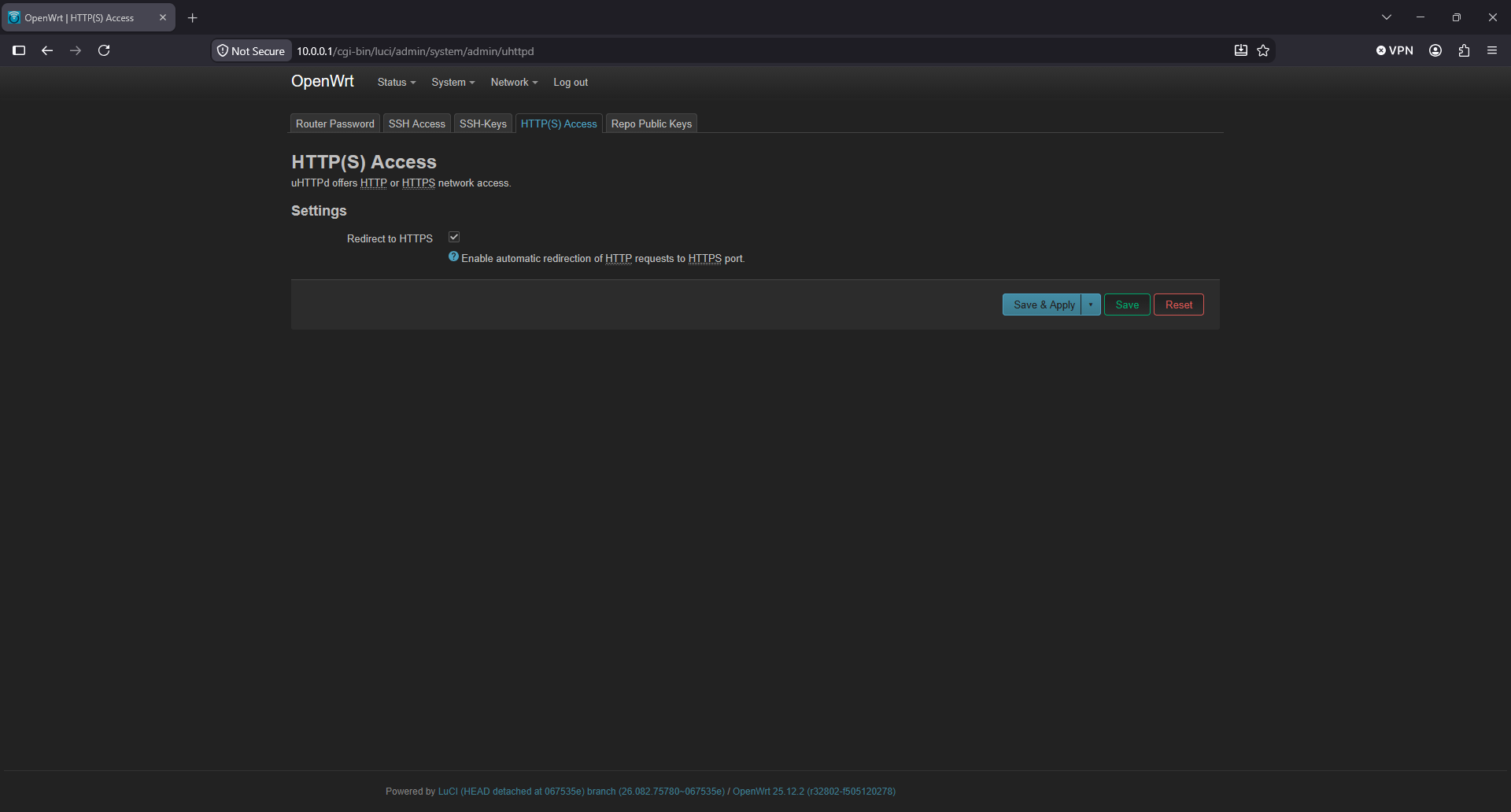
Enable HTTPS for the LuCI web interface to ensure management traffic is encrypted. This will used a built-in, OpenWrt-provided self-signed certificate. This is suitable, although not recommended, setup for a SOHO deployment.
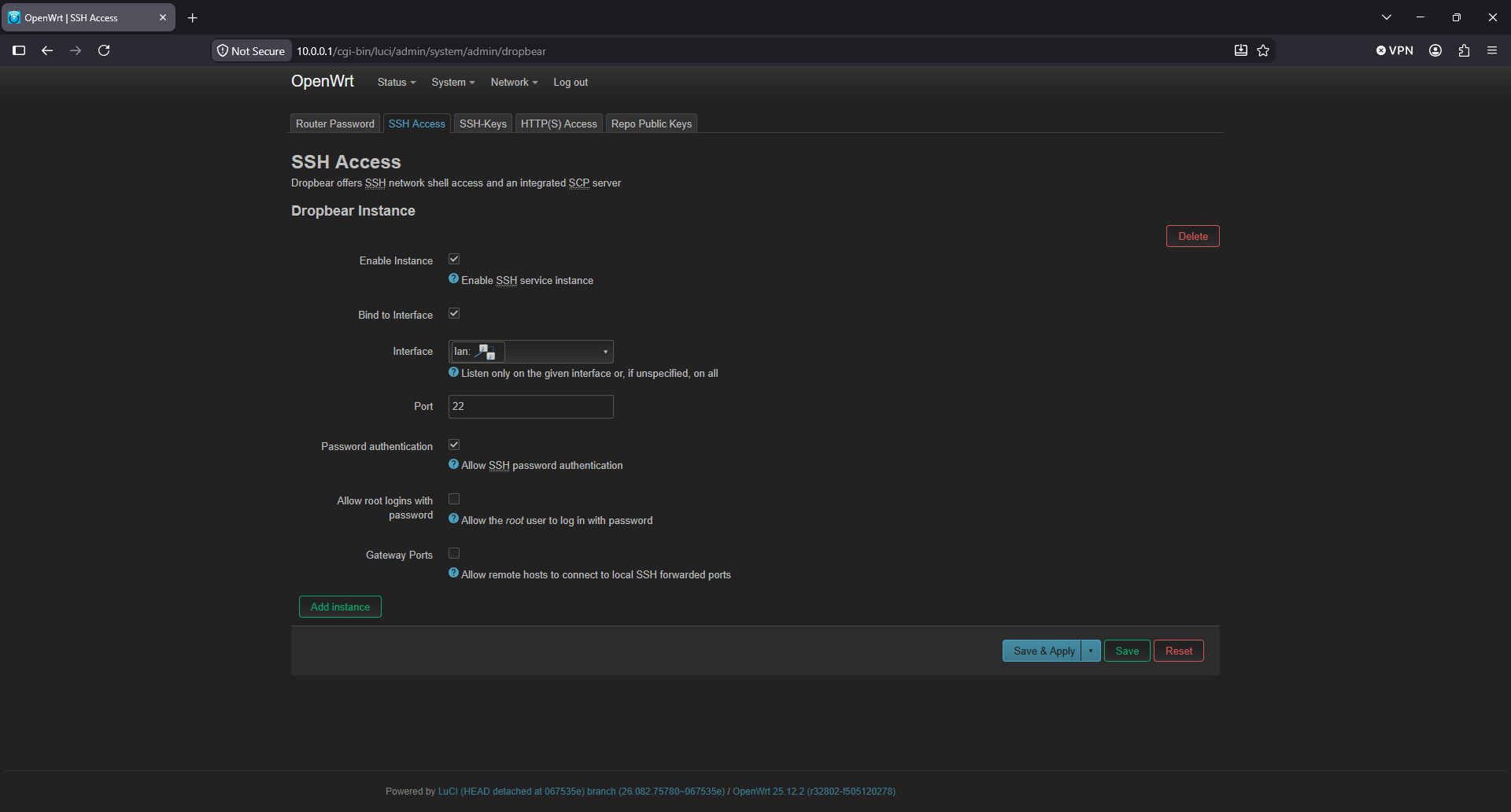
Configure Secure Shell (SSH) access for secure command-line management.
Confirm that WPS is disabled. WPS remains vulnerable to brute-force PIN attacks regardless of the underlying firmware. In this case, the default build of OpenWrt explicitly excludes WPS capability, which means the ability to use WPS is not included at all. It can be installed through additional software packages, but this is something that must be intentionally performed.
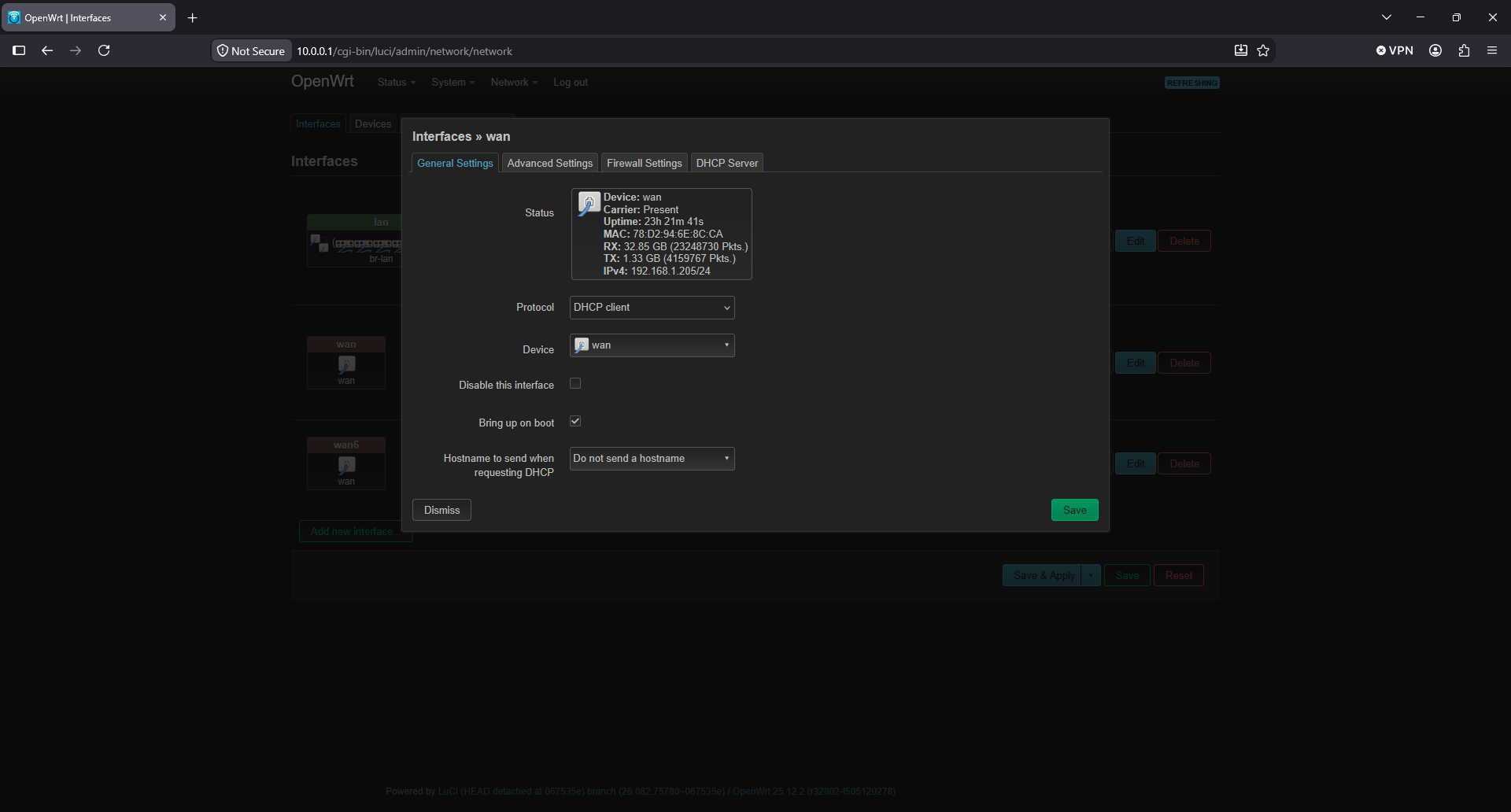
Configure WAN settings to match the ISP connection type (e.g., DHCP, PPPoE, or static IP).
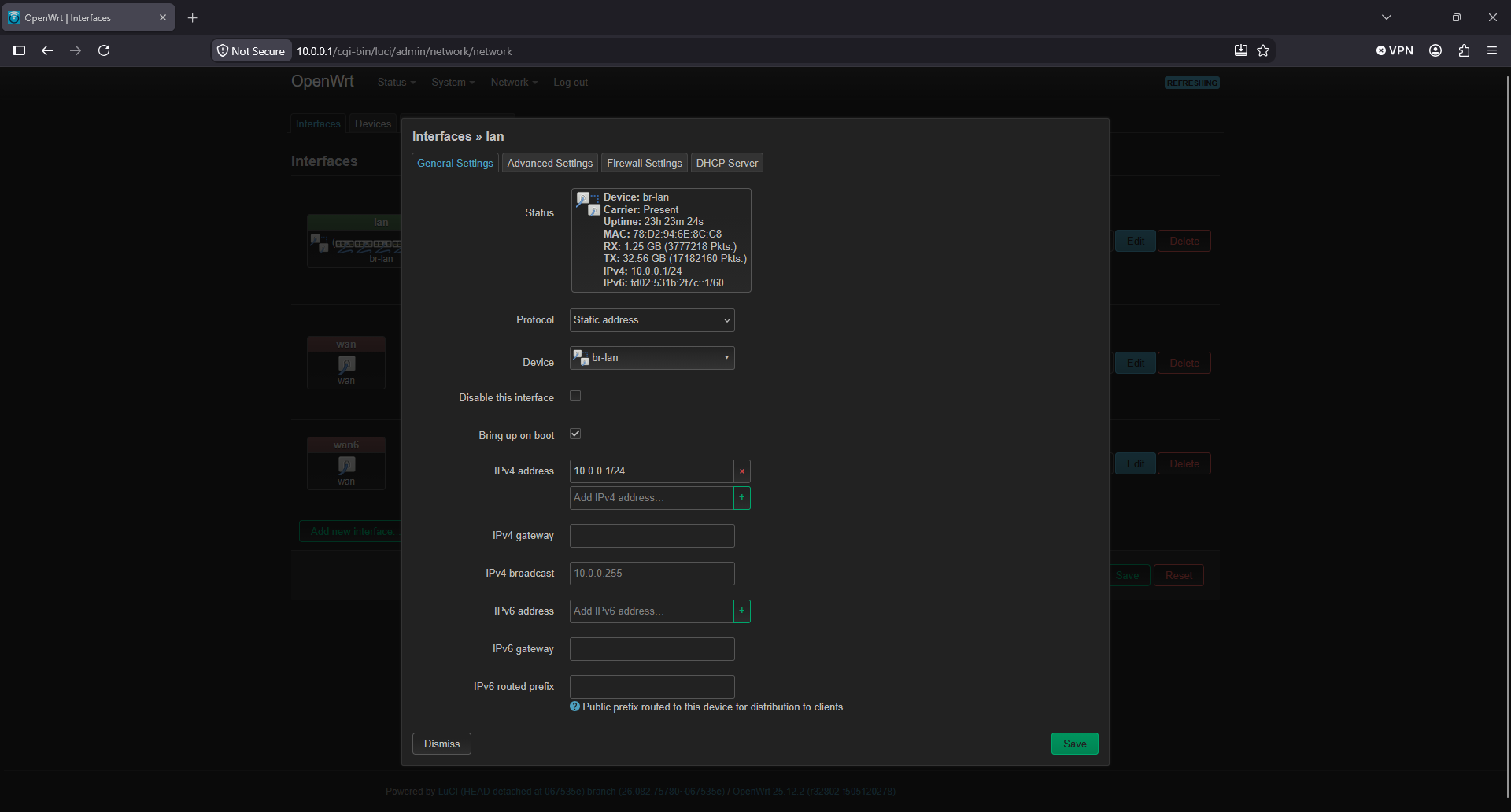
Configure LAN settings, including your preferred LAN IP address and subnet.
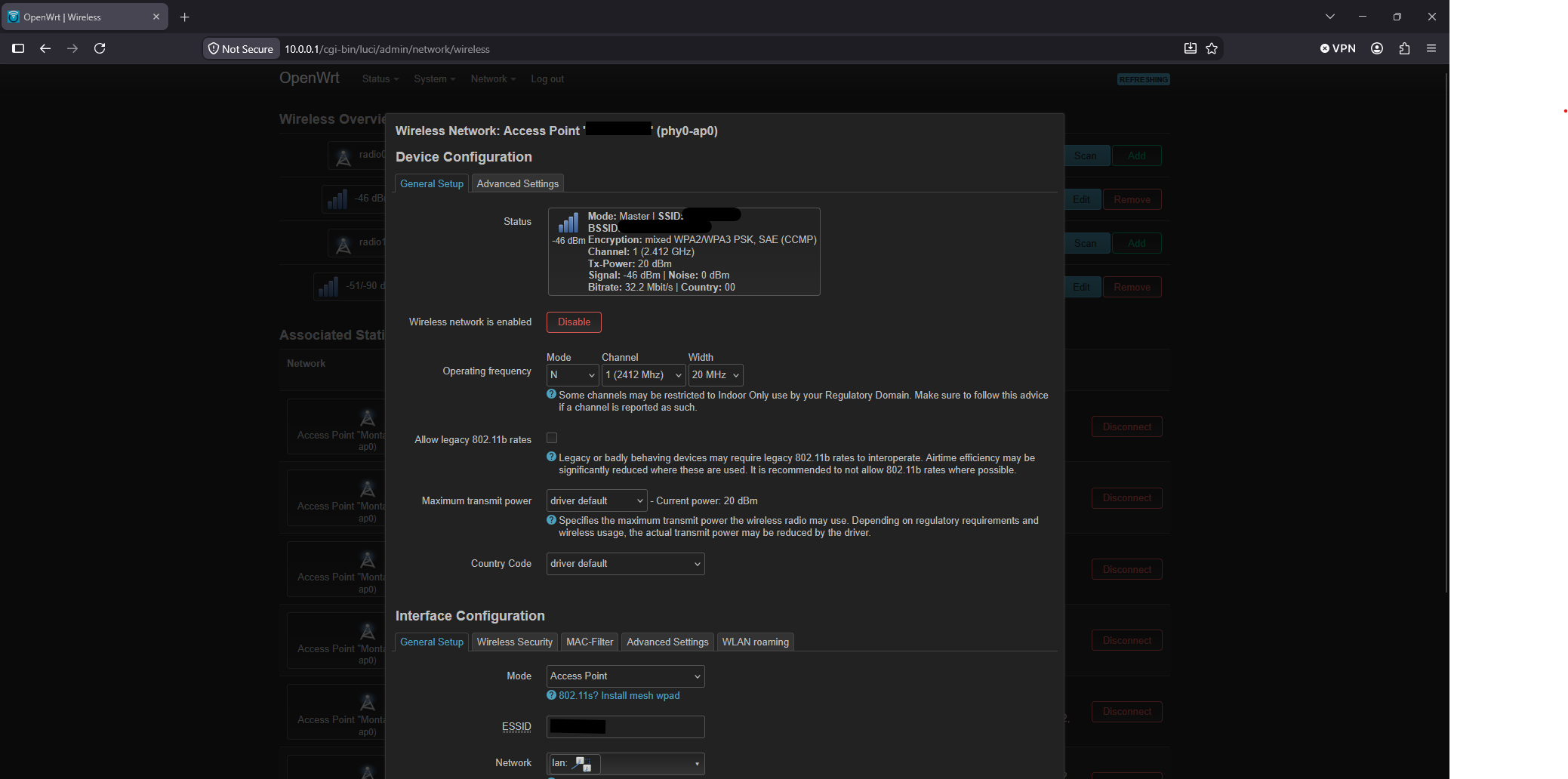
Configure Wi-Fi settings, including SSID names, passphrase, security mode (WPA2 or WPA3), and band configuration (2.4 GHz and 5 GHz).
Review and confirm OpenWrt's security settings, including disabling any unused services.
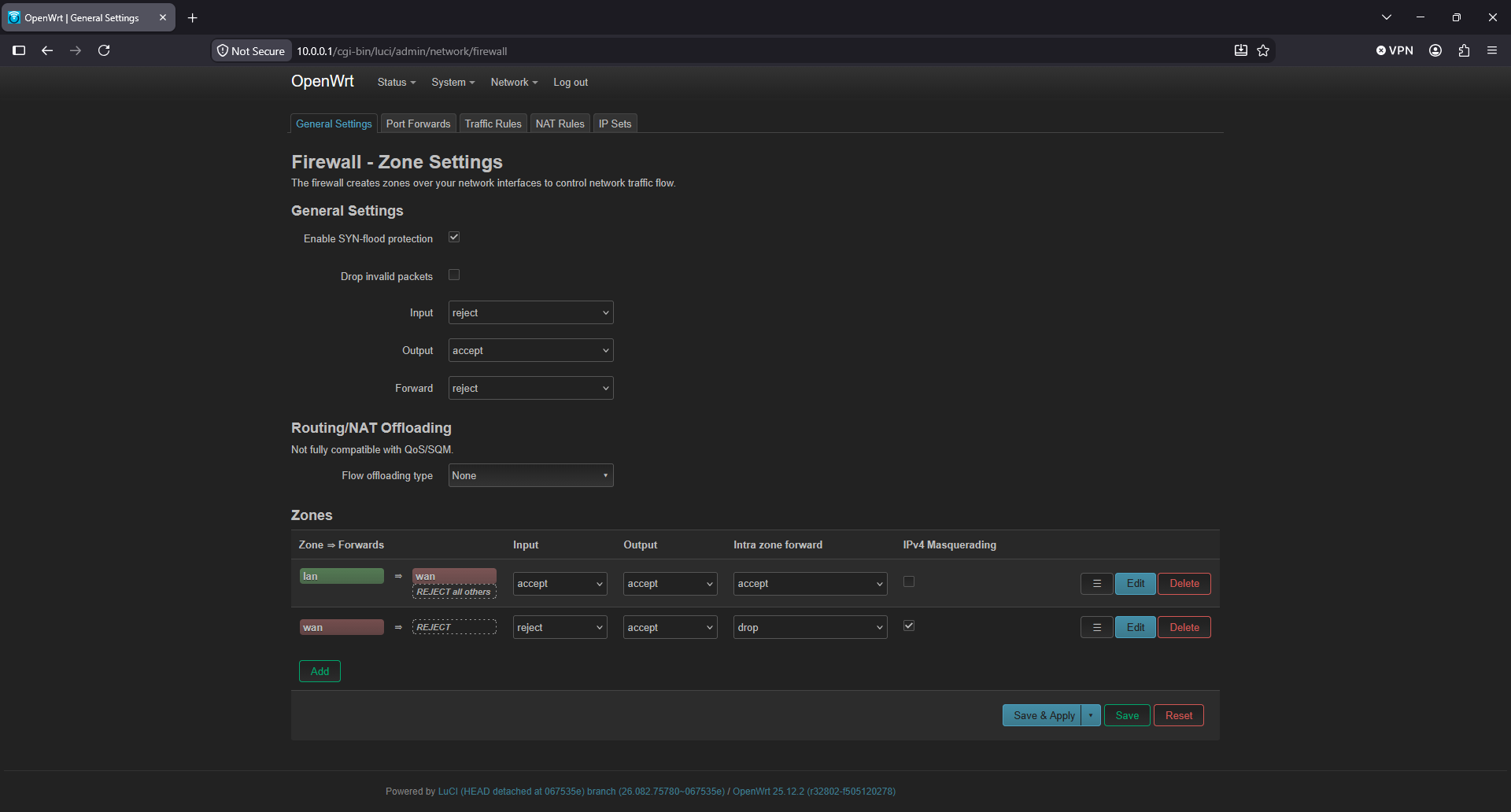
Review and confirm firewall rules to ensure traffic policies match your expectations.
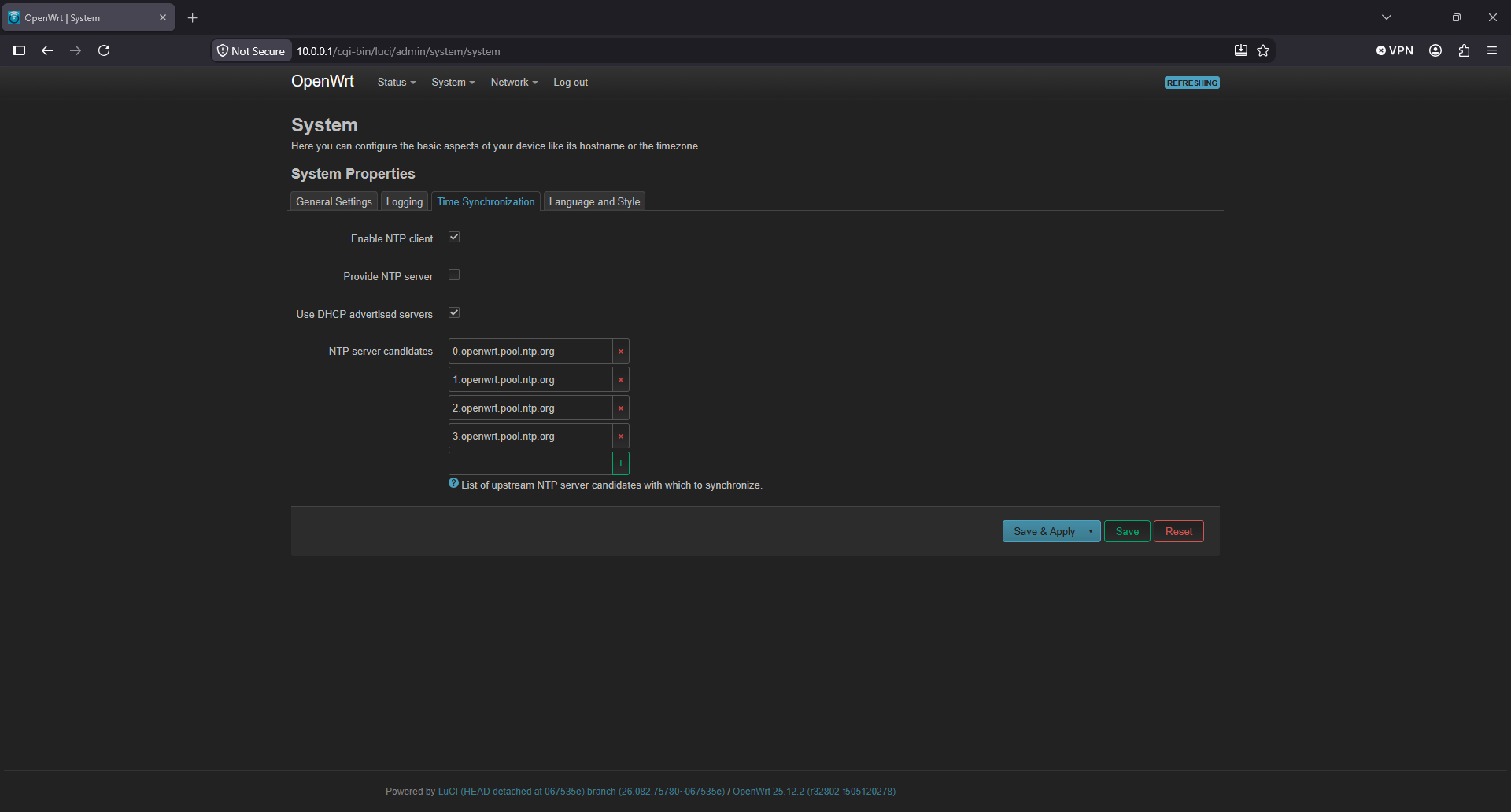
Verify that Network Time Protocol (NTP) is functioning correctly. Accurate timekeeping is essential for log timestamps, Transport Layer Security/Secure Sockets Layer (TLS/SSL) certificate validation, and any scheduled tasks.
Generate a current backup archive of the router and download the generated file.
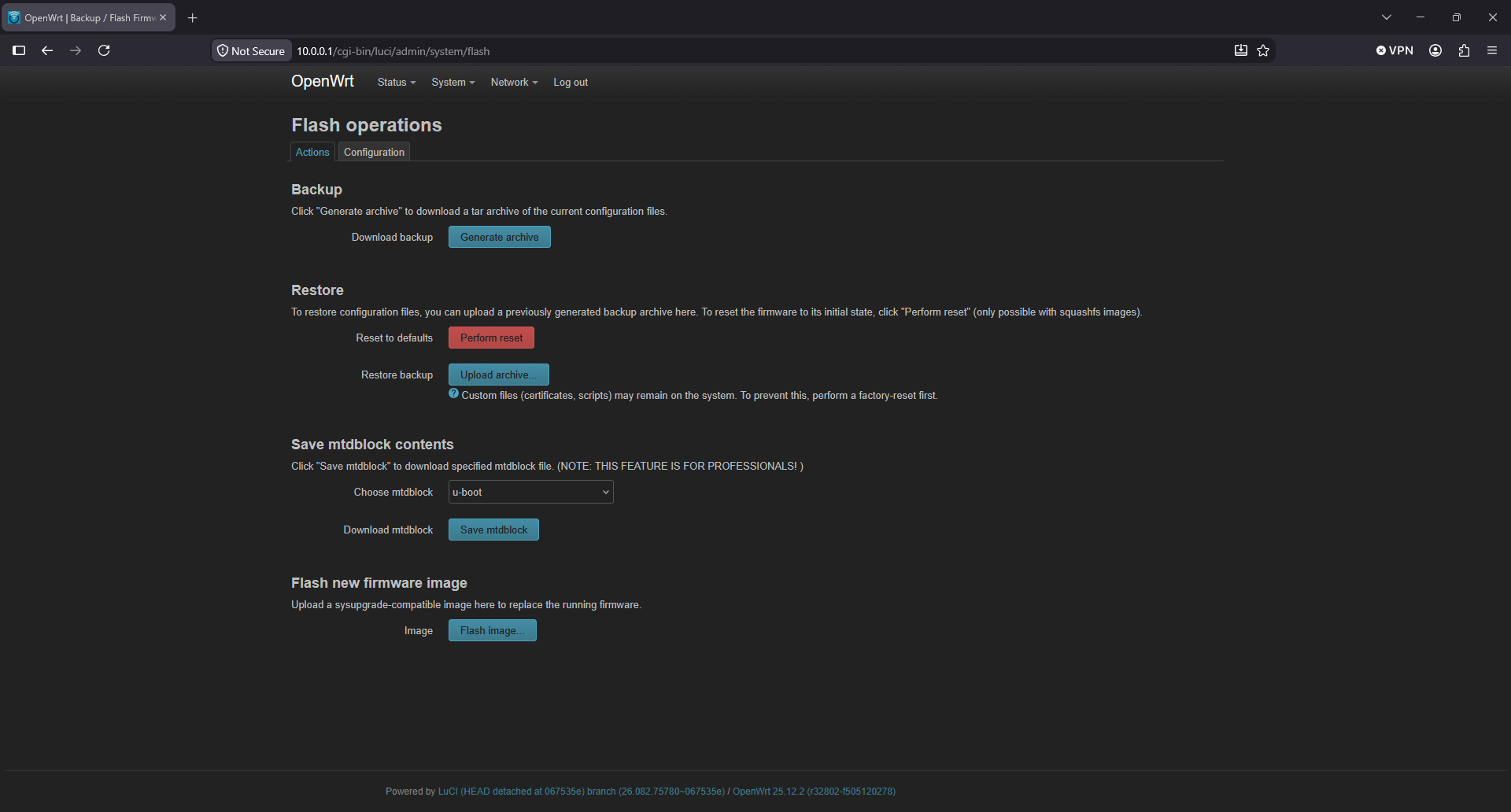
Update the package list and install available software updates, either through LuCI's Software page or via the command line:
opkg update && opkg upgrade.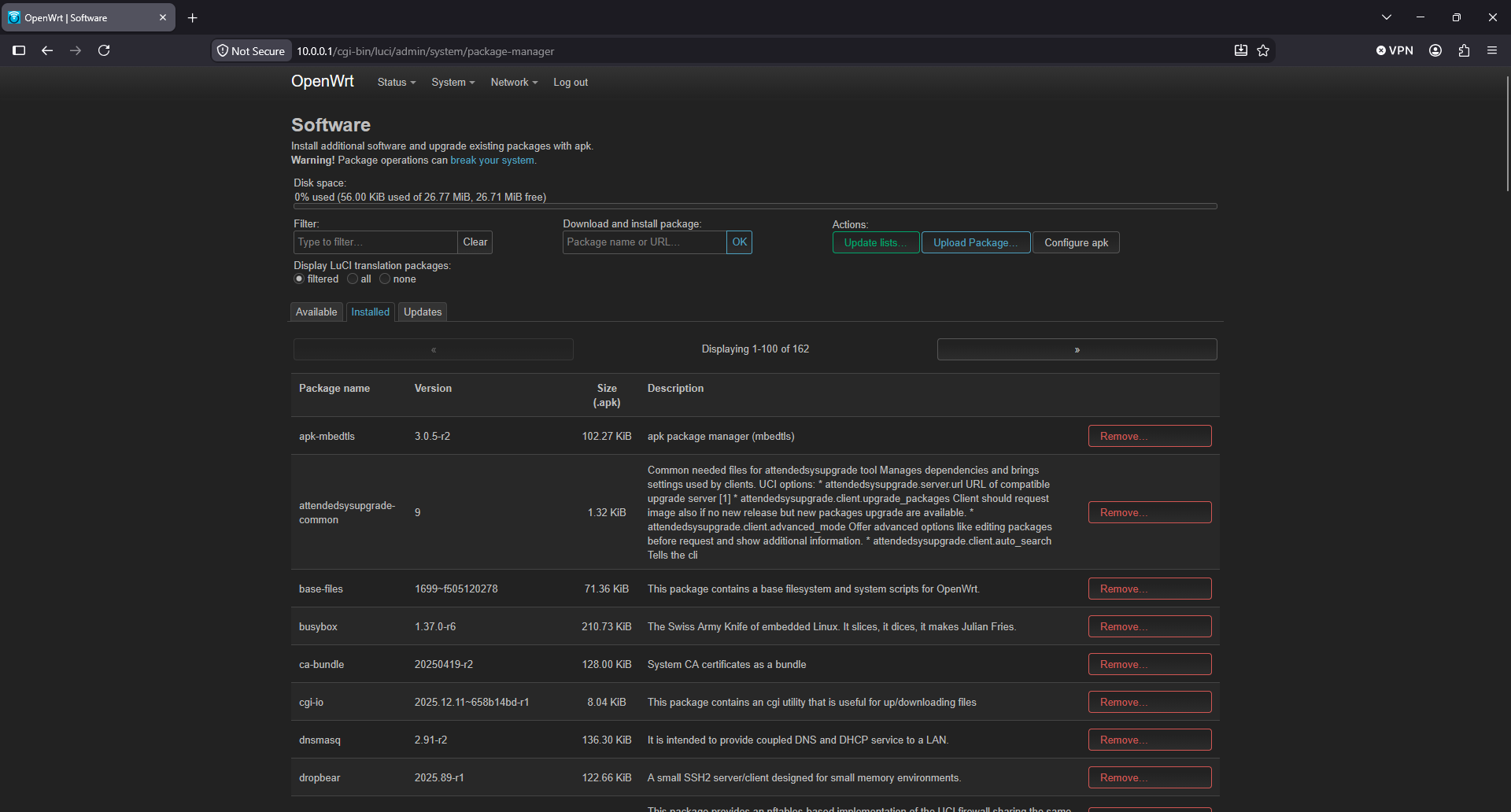
In summary, thanks to the hard work of a talented developer team, much of whose work is done on a volunteer basis, OpenWrt has given my wireless router a new lease on life that will allow it to provide many more years of service before needing replacement. There are other open-source alternatives to OEM firmware, including DD-WRT and Tomato (and its community-maintained fork, FreshTomato), but ultimately, I chose OpenWrt because of compatibility with my specific router, its configurability for my specific needs, and its extensibility with validated software packages in OpenWrt's repository. In a future blog post, I will document how to configure port mirroring on my router and monitor network traffic using open-source tools.
References
U.S. National Institute of Standards and Technology (NIST)
Tracy, M., Jansen, W., Scarfone, K., & Winograd, T. (2007). NIST Special Publication 800-44 Version 2: Guidelines on Securing Public Web Servers. National Institute of Standards and Technology. https://csrc.nist.gov/pubs/sp/800/44/ver2/final
Stouffer, K., Lightman, S., Pillitteri, V., Abrams, M., & Hahn, A. (2023). NIST Special Publication 800-82 Revision 3: Guide to Operational Technology (OT) Security. National Institute of Standards and Technology. https://csrc.nist.gov/pubs/sp/800/82/r3/final
Barker, E., Smid, M., & Branstad, D. (2015). NIST Special Publication 800-152: A Profile for U.S. Federal Cryptographic Key Management Systems. National Institute of Standards and Technology. https://csrc.nist.gov/pubs/sp/800/152/final
Kent, K., Chevalier, S., Grance, T., & Dang, H. (2006). NIST Special Publication 800-86: Guide to Integrating Forensic Techniques into Incident Response. National Institute of Standards and Technology. https://csrc.nist.gov/pubs/sp/800/86/final
Cheikes, B., Waltermire, D., & Scarfone, K. (2011). NISTIR 7695: Common Platform Enumeration: Naming Specification Version 2.3. National Institute of Standards and Technology. https://csrc.nist.gov/pubs/ir/7695/final
OpenWrt Project
- OpenWrt Project. (n.d.). OpenWrt official website. https://openwrt.org/
- OpenWrt Project. (n.d.). Table of Hardware (ToH). https://openwrt.org/toh/start
- OpenWrt Project. (n.d.). NETGEAR R6350 device page. https://openwrt.org/toh/netgear/r6350
- OpenWrt Project. (n.d.). OpenWrt version history. https://openwrt.org/about/history
Linux Kernel & GNU/FSF
- The Linux Kernel Organization. (n.d.). The Linux Kernel Archives. https://www.kernel.org/
- Torvalds, L. (1991). Linux 0.01 historical kernel source [archived at kernel.org]. Retrieved from the Linux Kernel Archives historical archive: ftp://ftp.kernel.org/pub/linux/kernel/Historic/
- Free Software Foundation. (n.d.). GNU General Public License. https://www.gnu.org/licenses/gpl.html
- Free Software Foundation. (n.d.). The GNU Project. https://www.gnu.org/
Windows NT Kernel (Microsoft)
Microsoft. (n.d.). Kernel-mode driver architecture design guide. Microsoft Learn. https://learn.microsoft.com/en-us/windows-hardware/drivers/kernel/ (Microsoft's official developer documentation covering the architecture and components of the Windows kernel, including the NT Executive, Hardware Abstraction Layer, kernel-mode managers, and driver model.)
Microsoft. (n.d.). Overview of Windows components. Microsoft Learn (Windows Hardware Developer Documentation). https://learn.microsoft.com/en-us/windows-hardware/drivers/kernel/overview-of-windows-components (Microsoft's own architectural overview of the major Windows kernel components and their relationships, published directly by Microsoft for hardware and driver developers.)
XNU Kernel & Darwin (Apple)
Apple Inc. (n.d.). XNU kernel source code [Open-source repository]. Apple Open Source Distributions, GitHub. https://github.com/apple-oss-distributions/xnu
Apple Inc. (n.d.). Apple open source. https://opensource.apple.com/
Apple Inc. (n.d.). Kernel programming guide: Introduction. Apple Developer Library Archive. https://developer.apple.com/library/archive/documentation/Darwin/Conceptual/KernelProgramming/About/About.html
Apple Inc. (n.d.). Getting started with Darwin. Apple Developer Library Archive. https://developer.apple.com/library/archive/referencelibrary/GettingStarted/GS_Darwin/_index.html
(Note: Apple's XNU kernel is published under the Apple Public Source License (APSL) 2.0 and hosted on GitHub as the canonical open-source distribution. Apple's open-source portal at opensource.apple.com is the hub for all Apple open-source projects, though as of January 2023 Apple no longer explicitly references Darwin by name on that site.)
Cornell University
- Cornell University Center for Advanced Computing. (n.d.). Introduction to Linux: A brief history of Linux. Cornell Virtual Workshop. https://cvw.cac.cornell.edu/linux/intro/history (Note: This page uses "0.1" to refer to the first Linux release. The Linux Kernel Archives at kernel.org designate the same release as version 0.01. For the most technically precise citation on this specific detail, kernel.org should be treated as the primary source.)
NETGEAR
- NETGEAR. (n.d.). AC1750 Smart Wi-Fi Router (R6350) product support page. https://www.netgear.com/support/product/r6350/
Third-Party Tools & Software
- Lehner, J. (n.d.). nmrpflash: Firmware flashing utility using NETGEAR's NMRP protocol [GitHub repository]. https://github.com/jclehner/nmrpflash
- Nmap Project. (n.d.). Npcap: Windows packet capture library. https://npcap.com/
- Open Information Security Foundation (OISF). (n.d.). Suricata: Open-source network threat detection engine. https://suricata.io/
- OpenSearch Project. (n.d.). OpenSearch: Open-source search and analytics suite. https://opensearch.org/
- The Squid Project. (n.d.). Squid: Web proxy cache. https://www.squid-cache.org/
Digital Living Network Alliance (DLNA)
DLNA. (n.d.). Contact us [dissolution notice]. Retrieved from the former DLNA official website, now maintained by SpireSpark International. https://dlna.org/about/contact-us (Note: This page is the organization's own formal dissolution notice, stating: "The Digital Living Network Alliance has dissolved and is no longer operating." It is the most authoritative primary source for DLNA's end-of-life status.)
ConsortiumInfo.org. (2017). Digital Living Network Alliance (DLNA). Standards Body and Consortium Tracker. https://consortiuminfo.org/?p=4137